IconANTON RETRO
  • Home
  • News
    Recent News
    NintendoRetroIndustry
  • Reviews
    Recent Reviews
    HardwareSwitchWii3DS
  • Guides
    All Guides
    WiiWii USwitch3DS
  • Videos
  • Games
  • Mods
  • Portal
    Portal Home
    My PortfolioAdmin Dashboard
  • About
Home
News
Recent NewsNintendoRetroIndustry
Reviews
Recent ReviewsHardwareSwitchWii3DS
Guides
All GuidesWiiWii USwitch3DS
Videos
Games
Mods
Portal
Portal HomeMy PortfolioAdmin Dashboard
About
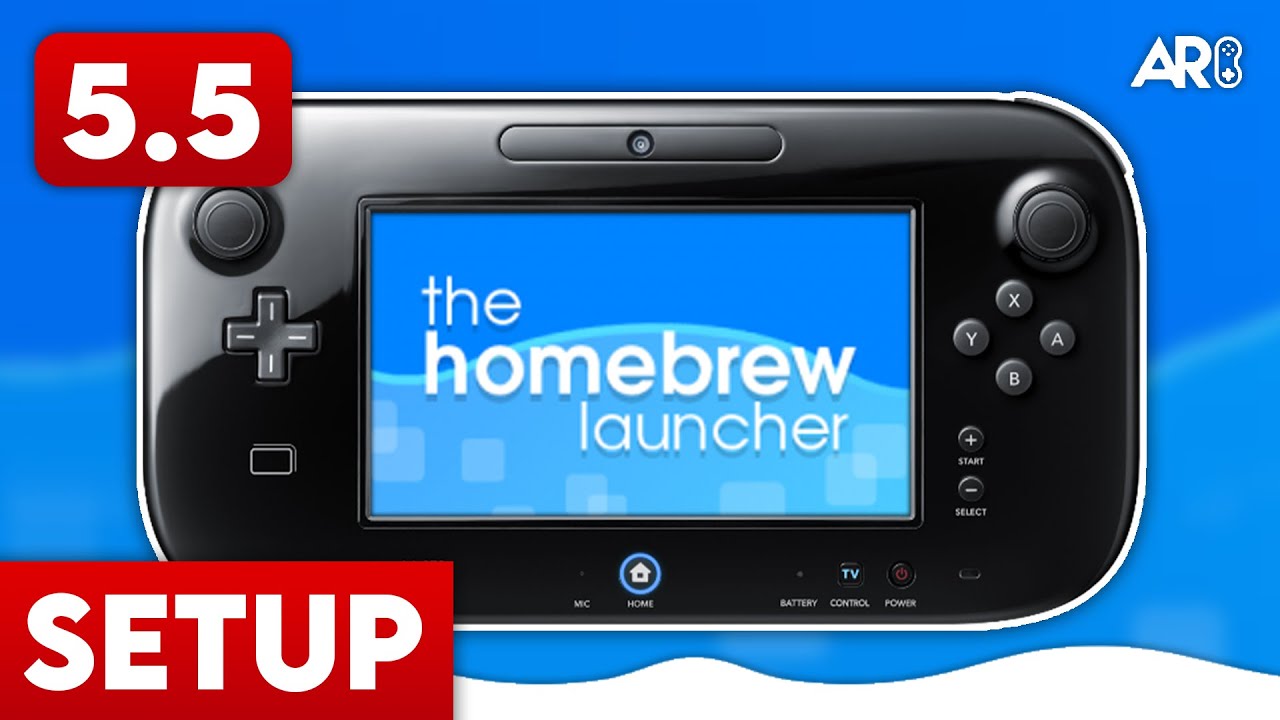
How to Homebrew Wii U (Aroma)
Home/Guides
wiiuHardguidesv5.5.6GUIDEtutorial

How to Homebrew Wii U (Aroma)

Anthony MicallefByAnthony Micallef
UPDATEDJan 17, 2026
READ2 MIN
VIEWS11.2K
Share

Introduction

The Definitive Wii U Modding Environment

For years, Wii U homebrew relied on legacy exploits like Haxchi. Today, the modern standard is Aroma. It’s stable, modular, and boots directly at the system level—eliminating the need to launch an app to enable CFW.

Before You Start

  • Ensure your Wii U is on the latest official firmware.
  • If you have CBHC (Coldboot Haxchi) installed, you MUST uninstall it first to avoid a brick.
  • Format your SD card to FAT32 with 32 KB clusters.

Step 1: SD Card Preparation

  1. Download the Aroma ‘Base’ and ‘Tools’ packs from aroma.foryour.cafe.
  2. Extract the contents to the root of your SD card.
  3. Your folder structure should include /wiiu/environments/aroma.
  4. Copy PayloadLoaderInstaller.wuhb to /wiiu/apps/.

Step 2: Running the Browser Exploit

  1. Insert the SD card into your Wii U.
  2. Connect your Wii U to the Internet.
  3. Open the Internet Browser and go to wiiuexploit.xyz.
  4. Hold B while the exploit loads to enter the Environment Loader.
  5. Select ‘Aroma’ and choose ‘Set as default.’
If it freezes: Wait a few seconds. If nothing happens, reboot, clear browser save data, and try again.

Step 3: NAND Backup (Recommended)

  1. From the exploit menu, select nanddumper.
  2. Select Yes for SLC, SLCCMPT, OTP, and SEEPROM.
  3. Only select Yes for MLC if your SD card is 32GB+.
  4. Press A to start the backup.
  5. After completion, copy the backup files to your PC and delete them from the SD card.

Step 4: Installing PayloadLoader

  1. Run the browser exploit again, but this time hold X instead of B.
  2. Press A to launch Aroma, then A again to boot the Wii U Menu.
  3. From the Wii U Menu, launch PayloadLoader Installer (blue A icon).
  4. Press A to check, then select Install / Update.

Step 5: Autoboot Aroma

  1. Open the Health and Safety Information app while holding X.
  2. Launch Aroma, then launch PayloadLoader Installer again.
  3. Select Boot options → Switch to PayloadLoader.
  4. Press A to shut down. Your Wii U will now autoboot into Aroma!

Key Features

Aroma includes a built-in plugin system accessible via L + Down + Minus. This allows you to enable:

  • WiiUPluginBackend for overclocking
  • Region-free gaming
  • Custom themes on the fly

You’re Done!

Your Wii U is now running Aroma homebrew. Install games, emulators, and custom apps from the Homebrew App Store!

Table of Contents

Introduction
The Definitive Wii U Modding Environment
Before You Start
Step 1: SD Card Preparation
Step 2: Running the Browser Exploit
Step 3: NAND Backup (Recommended)
Step 4: Installing PayloadLoader
Step 5: Autoboot Aroma
Key Features
You’re Done!

Quick Info

Platformwiiu
DifficultyHard
Time2 MIN
Guide Typeguides
Version5.5.6

Share This Guide

About the Author

Anthony Micallef

Anthony Micallef

Anthony Micallef is the creator of Anton Retro, a platform dedicated to retro gaming enthusiasts. With years of experience in Nintendo homebrew and modding, he creates guides to help gamers get the most out of their consoles.

Anton Retro GitHub

How did this guide help?

Leave a comment or tip for other players

0

Comments may be moderated before appearing.

Loading comments...

Table of Contents

Introduction
The Definitive Wii U Modding Environment
Before You Start
Step 1: SD Card Preparation
Step 2: Running the Browser Exploit
Step 3: NAND Backup (Recommended)
Step 4: Installing PayloadLoader
Step 5: Autoboot Aroma
Key Features
You’re Done!

Quick Info

Platformwiiu
DifficultyHard
Time2 MIN
Guide Typeguides
Version5.5.6

Most Popular

01

How to Homebrew Your New Nintendo 3DS (11.17)

02

How to stream your New Nintendo 3DS

03

How to Setup an SDHC R4 Card

04

How to Homebrew Your Original Nintendo 3DS & 2DS (11.17)

05

Setup USB Loader GX

06

Top 10 Essential 3DS Homebrew Apps!

See More

Trending Now

NEWS

RUMOR: Nintendo Direct Reportedly Incoming for June, With Surprises Still Under Wraps

NEWS

Minecraft for Nintendo Switch 2 Rated by the ESRB

NEWS

suiCune: Pokemon Crystal Gets a Native PC Port Built From Scratch

GAME

suiCune (Pokemon Crystal PC Port)

GAME

Pokemon Platinum (Unofficial PC Port)

NEWS

Pokemon Platinum Gets Unofficial Native PC Port

Related

Feb 10, 2026

Miyoo Mini / Plus Starter Guide (Onion OS)

Feb 4, 2026

Eclipse: The Best GBA Emulator for iOS!

Feb 4, 2026

How To Play Pokemon DS Games ONLINE (2021)

How to Homebrew Wii U (Aroma)
IconANTON RETRO

Retro gaming news, reviews, guides, and homebrew coverage. For Nintendo fans, modders, and collectors.

Explore
  • News
  • Reviews
  • Guides
  • Videos
  • Games
  • Mods
Information
  • Portal
  • About
  • Privacy Policy
  • Terms of Service
  • Sitemap
  • Changelog
  • Contact

78,000+ subscribers

Join 78,000+ retro gaming enthusiasts and never miss a video!

Subscribe Now

© 2026 Anthony Micallef - Anton Retro. All rights reserved.

DigitalOcean Referral Badge|Icons byControllercons|v5.0.0