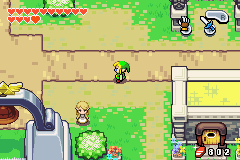
The Minish Cap PC port is a native decompilation of the Game Boy Advance classic, rebuilt to run directly on Windows without any emulator. It supports widescreen, high frame rates, and modern controller input.
What You Need
- A Windows PC (64-bit)
- A legal copy of The Legend of Zelda: The Minish Cap (GBA ROM from a cartridge you own)
- The latest PC port release from the official GitHub
The port does not include game data. You must provide your own ROM file. This guide does not link to ROM download sources.
Step 1: Download the PC Port
Go to the official GitHub releases page and download the latest Windows build. Extract it to a folder such as C:\Games\MinishCap.
Step 2: Add Your ROM File
Place your Minish Cap .gba ROM in the same folder as the extracted port. The port detects it automatically on first launch.
Advertisement
Loading ad...
Step 3: Launch the Game
Run the .exe file. On first launch the port extracts assets from your ROM. This takes a few seconds and only happens once.
Step 4: Configure Controls
The port supports keyboard, Xbox controllers, and PlayStation controllers. Open the in-game settings to remap buttons.
Step 5: Adjust Display Settings
Enable widescreen, adjust the resolution multiplier, and toggle fullscreen from the settings menu. Running at 4x or 6x scale gives a clean pixel-perfect look on modern monitors.
Troubleshooting
- Port does not detect my ROM – make sure the ROM is in the same directory as the executable
- Wrong ROM version error – check the GitHub page for the exact supported version
- Black screen on launch – try running as administrator or updating GPU drivers
Table of Contents
Advertisement
Loading ad...
Advertisement
Loading ad...
About the Author

Anthony Micallef
Anthony Micallef is the creator of Anton Retro, a platform dedicated to retro gaming enthusiasts. With years of experience in Nintendo homebrew and modding, he creates guides to help gamers get the most out of their consoles.
Table of Contents






Advertisement
Loading ad...
How did this guide help?
Leave a comment or tip for other players