IconANTON RETRO
  • Home
  • News
    Recent News
    NintendoRetroIndustry
  • Reviews
    Recent Reviews
    HardwareSwitchWii3DS
  • Guides
    All Guides
    WiiWii USwitch3DS
  • Videos
    All Videos
    PodcastsGames of the Week
  • Games
  • Mods
  • Portal
    Portal Home
    My PortfolioAdmin Dashboard
  • About
Home
News
Recent NewsNintendoRetroIndustry
Reviews
Recent ReviewsHardwareSwitchWii3DS
Guides
All GuidesWiiWii USwitch3DS
Videos
All VideosPodcastsGames of the Week
Games
Mods
Portal
Portal HomeMy PortfolioAdmin Dashboard
About
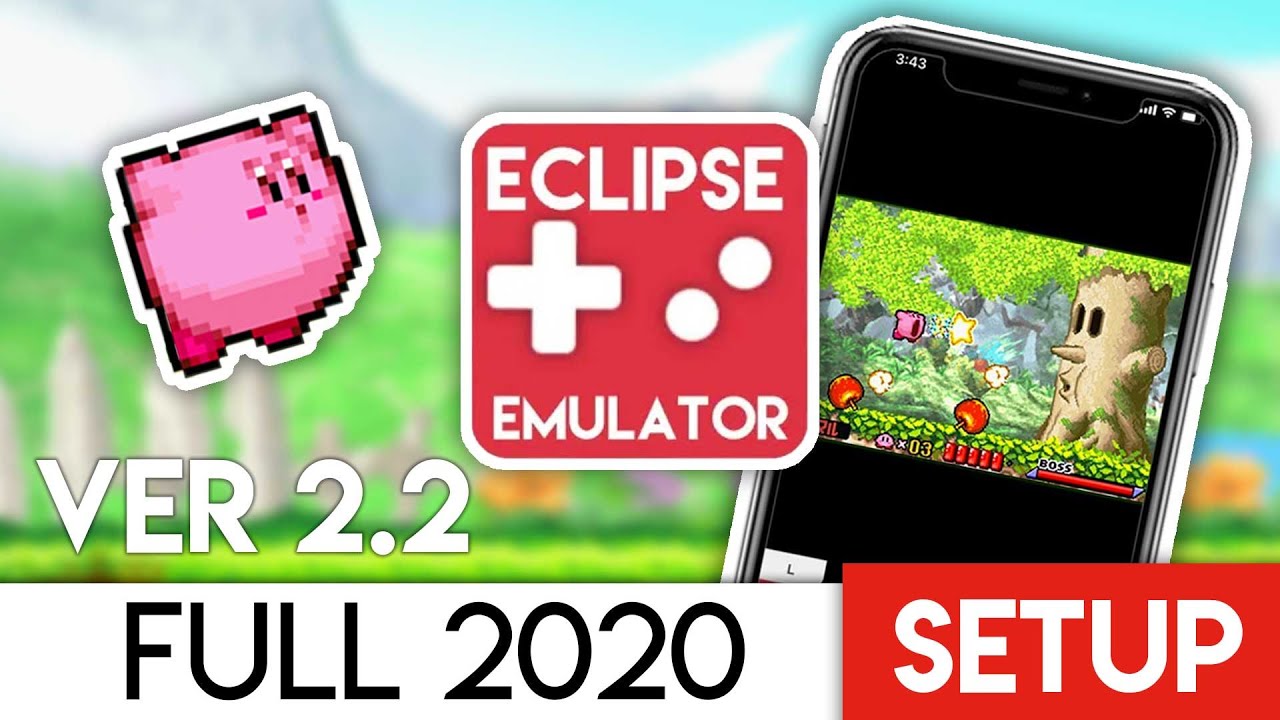
Eclipse: The Best GBA Emulator for iOS!
Home/Guides
mobileBeginnerguidesv2020GUIDEtutorial

Eclipse: The Best GBA Emulator for iOS!

Anthony MicallefByAnthony Micallef
UPDATEDFeb 4, 2026
READ3 MIN
VIEWS751
Share

Introduction

Eclipse is a powerful web-based emulator that lets you play classic games directly in your browser—no downloads or installs required. Whether you’re on iOS, Android, or desktop, Eclipse works seamlessly without worrying about app revokes or sideloading. Best of all, it supports offline play once your games are loaded!
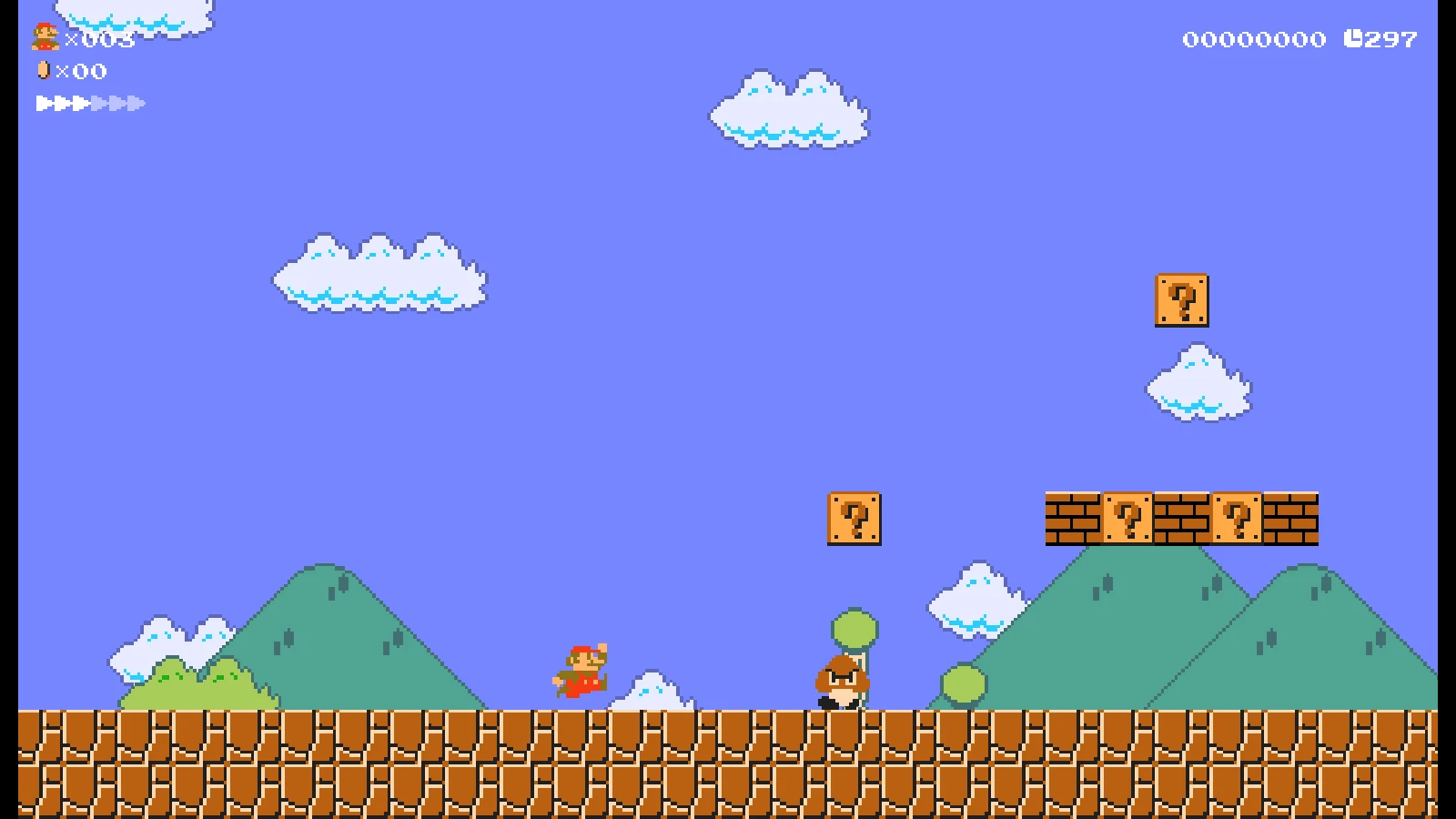
Supported Systems

Eclipse currently supports the following consoles:

  • Game Boy (GB)
  • Game Boy Color (GBC)
  • Game Boy Advance (GBA)
  • Nintendo Entertainment System (NES)
  • Super Nintendo (SNES)
  • Sega Master System
  • Sega Game Gear

More systems are planned for future updates!

Getting Started

Setting up Eclipse is incredibly simple since it runs entirely in your browser.

Step 1: Open Eclipse

Visit eclipseemu.me in any modern web browser (Safari, Chrome, Firefox, Edge). On iOS, we recommend using Safari for the best experience.

Advertisement
Loading ad...

Step 2: Add to Home Screen

For the best app-like experience on iOS/iPadOS:

  1. Tap the Share button in Safari
  2. Select “Add to Home Screen”
  3. Name it “Eclipse” and tap Add

This gives you a dedicated icon and fullscreen gameplay without browser UI!

Adding Games to Your Library

Eclipse offers multiple ways to load your games:

Cloud Storage (Google Drive / Dropbox)

Connect your cloud storage account to sync your ROM collection. This is the easiest way to access your games across all your devices.

  1. Tap the + button in your Library
  2. Select Google Drive or Dropbox
  3. Sign in and authorize Eclipse
  4. Browse and select your ROM files

Local Files

You can also load ROMs directly from your device:

  1. Tap the + button in your Library
  2. Select Local Files
  3. Choose your ROM file from your device storage

Note: Games loaded from local files won’t be saved to your Library, but your save data will still be preserved.

Homebrew Games

Eclipse includes a curated selection of free homebrew games you can play instantly—no ROMs needed!

Controls & Input Methods

Eclipse supports three main input methods:

Touch Controls

On mobile devices, on-screen touch controls appear automatically. The D-pad and buttons are positioned for comfortable thumb access.

Keyboard

On desktop or with a connected keyboard, use the default bindings or customize them in Settings.

Game Controllers

Eclipse supports Bluetooth and USB controllers via the JavaScript Gamepad API. Simply connect your controller and it should be recognized automatically. Popular controllers like Xbox, PlayStation, and 8BitDo controllers work great!

Customizing Controls

Don’t like the default button layout? Head to Settings → Controls to remap any button to your preference.

Managing Save Files

Eclipse automatically saves your progress using browser storage. You can also:

  • Export saves to back them up locally
  • Import saves from other emulators
  • Manage save states for quick save/load functionality

Your save data persists even for games loaded from local files!

Playing Offline

Eclipse works offline once loaded! For the best offline experience:

  1. Add Eclipse to your Home Screen
  2. Load games from local files instead of cloud storage
  3. Your games and saves will be available even without internet

Pro Tips

  • Fullscreen Mode: Tap the fullscreen button during gameplay for an immersive experience
  • Fast Forward: Speed up gameplay for grinding or slow sections
  • Portrait/Landscape: Eclipse adapts to your device orientation automatically
  • No Revokes: Since Eclipse is web-based, you’ll never lose access due to certificate revokes like sideloaded apps

Table of Contents

Introduction
Supported Systems
Getting Started
Step 1: Open Eclipse
Step 2: Add to Home Screen
Adding Games to Your Library
Cloud Storage (Google Drive / Dropbox)
Local Files
Homebrew Games
Controls & Input Methods

Quick Info

Platformmobile
DifficultyBeginner
Time3 MIN
Guide Typeguides
Version2020
Jump to Comments
Advertisement
Loading ad...
Advertisement
Loading ad...

Share This Guide

About the Author

Anthony Micallef

Anthony Micallef

Anthony Micallef is the creator of Anton Retro, a platform dedicated to retro gaming enthusiasts. With years of experience in Nintendo homebrew and modding, he creates guides to help gamers get the most out of their consoles.

Anton Retro GitHub

How did this guide help?

Leave a comment or tip for other players

0

Comments may be moderated before appearing.

Loading comments...

Table of Contents

Introduction
Supported Systems
Getting Started
Step 1: Open Eclipse
Step 2: Add to Home Screen
Adding Games to Your Library
Cloud Storage (Google Drive / Dropbox)
Local Files
Homebrew Games
Controls & Input Methods

Quick Info

Platformmobile
DifficultyBeginner
Time3 MIN
Guide Typeguides
Version2020
Jump to Comments

Most Popular

01

How to Homebrew Your New Nintendo 3DS (11.17)

02

How to stream your New Nintendo 3DS

03

How to Setup an SDHC R4 Card

04

How to Homebrew Your Original Nintendo 3DS & 2DS (11.17)

05

Setup USB Loader GX

06

Top 10 Essential 3DS Homebrew Apps!

See More

Trending Now

NEWS

The Impact of Star Fox and Our Too Many Games Stories | Perky Planet #2

NEWS

I Was on Perky Planet, Reecee’s New Nintendo Podcast

NEWS

Nintendo Switch Sports Resort Fixes Everything the Previous Game Got Wrong

NEWS

Nintendo Direct June 9 2026: Every Single Announcement, Ranked

NEWS

Pikuniku 2 Is Going 3D and It Was Hiding in a Dancing Meme the Whole Time

NEWS

The Legend of Zelda: Ocarina of Time Is Being Reborn on Nintendo Switch 2

Advertisement
Loading ad...

Related

Jun 4, 2026

How to Install Banjo-Kazooie Recompiled (PC Port)

Jun 4, 2026

How to Install Ship of Harkinian (Ocarina of Time PC Port)

Jun 4, 2026

How to Install The Legend of Zelda: The Minish Cap PC Port

Eclipse: The Best GBA Emulator for iOS!
Advertisement
Loading ad...
IconANTON RETRO

Retro gaming news, reviews, guides, and homebrew coverage. For Nintendo fans, modders, and collectors.

Explore
  • News
  • Reviews
  • Guides
  • Videos
  • Games
  • Mods
Information
  • Portal
  • About
  • Editorial Policy
  • Privacy Policy
  • Terms of Service
  • Sitemap
  • Changelog
  • Contact

78,000+ subscribers

Join 78,000+ retro gaming enthusiasts and never miss a video!

Subscribe Now

© 2026 Anthony Micallef - Anton Retro. All rights reserved.

DigitalOcean Referral Badge|Icons byControllercons|v5.0.0