Credits: Texture pack created by The Game Restorers (specifically matoki).
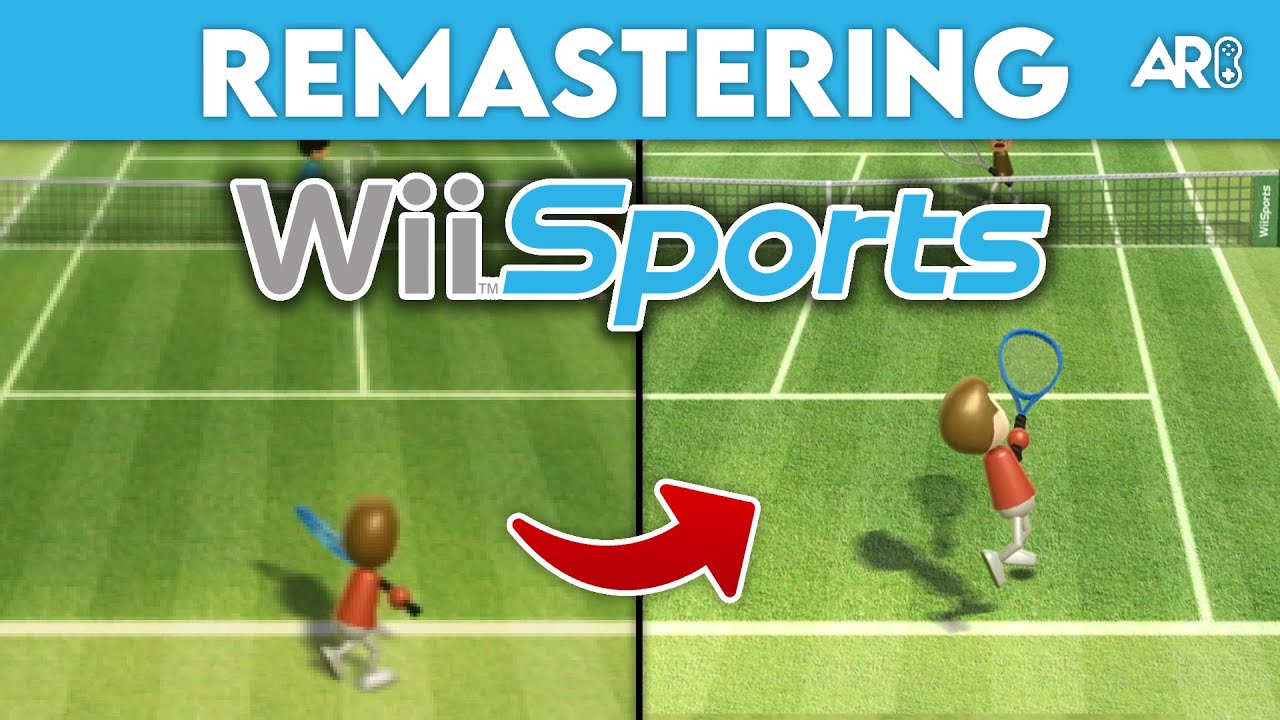
Wii Sports in Stunning 4K
Give the Wii’s most iconic game a modern facelift! This high-definition texture pack replaces every asset in Wii Sports—from the tennis courts to the bowling pins—with crisp, 4K textures designed for the Dolphin emulator.
How to Install
- Download the Wii Sports HD Texture Pack.
- Open Dolphin and right-click on Wii Sports in your game list.
- Select ‘Open Texture Directory’. This will take you to
/Load/Textures/RSPE01/(for the US version). - Copy the contents of the zip file directly into this folder.
Dolphin Configuration
Navigate to Graphics > Advanced and ensure ‘Load Custom Textures’ is enabled. For the best look, set your internal resolution to 3x or 4x (1080p/4K) in the General tab. You’ll be amazed at how clean the Wii Sports characters look in high definition!
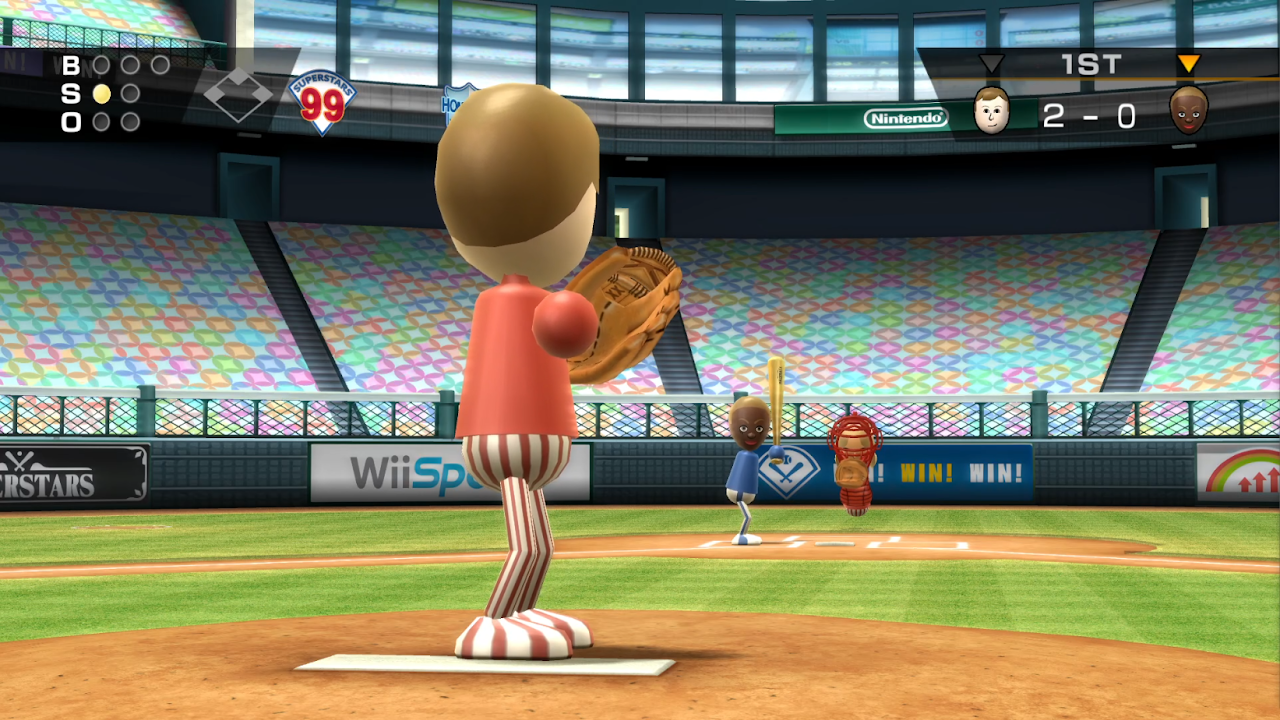
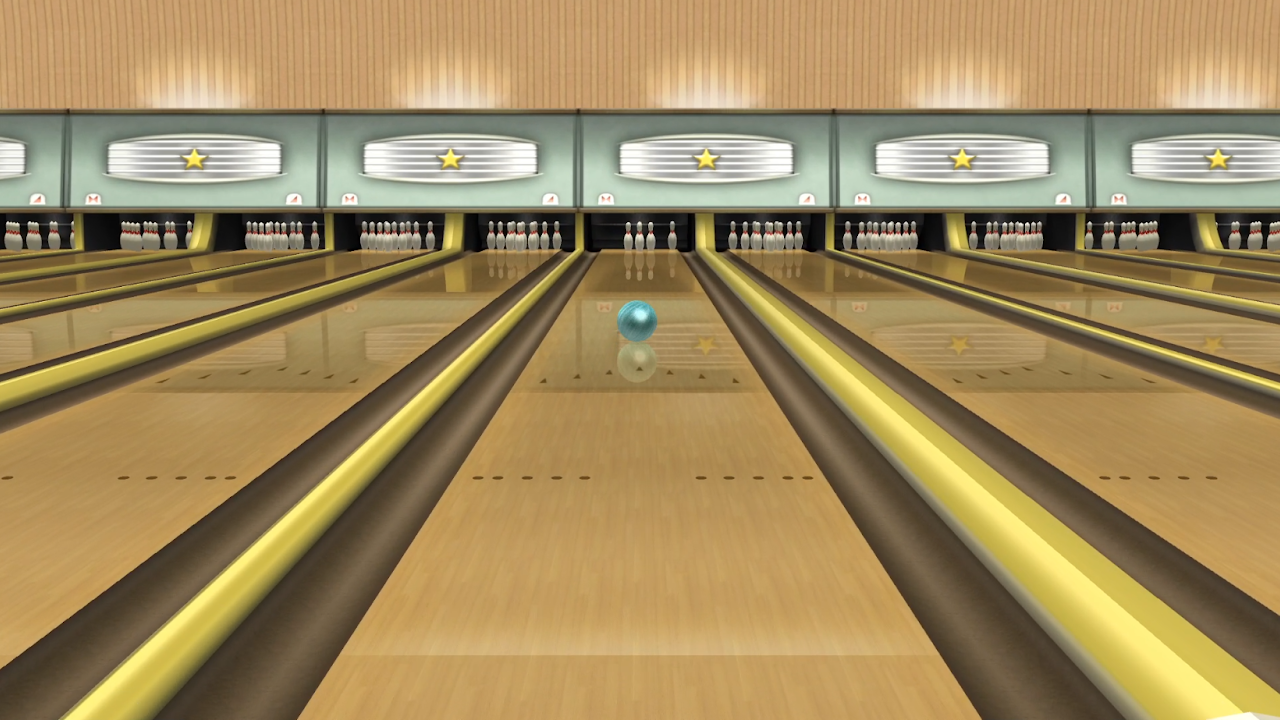
HD Screenshot Gallery
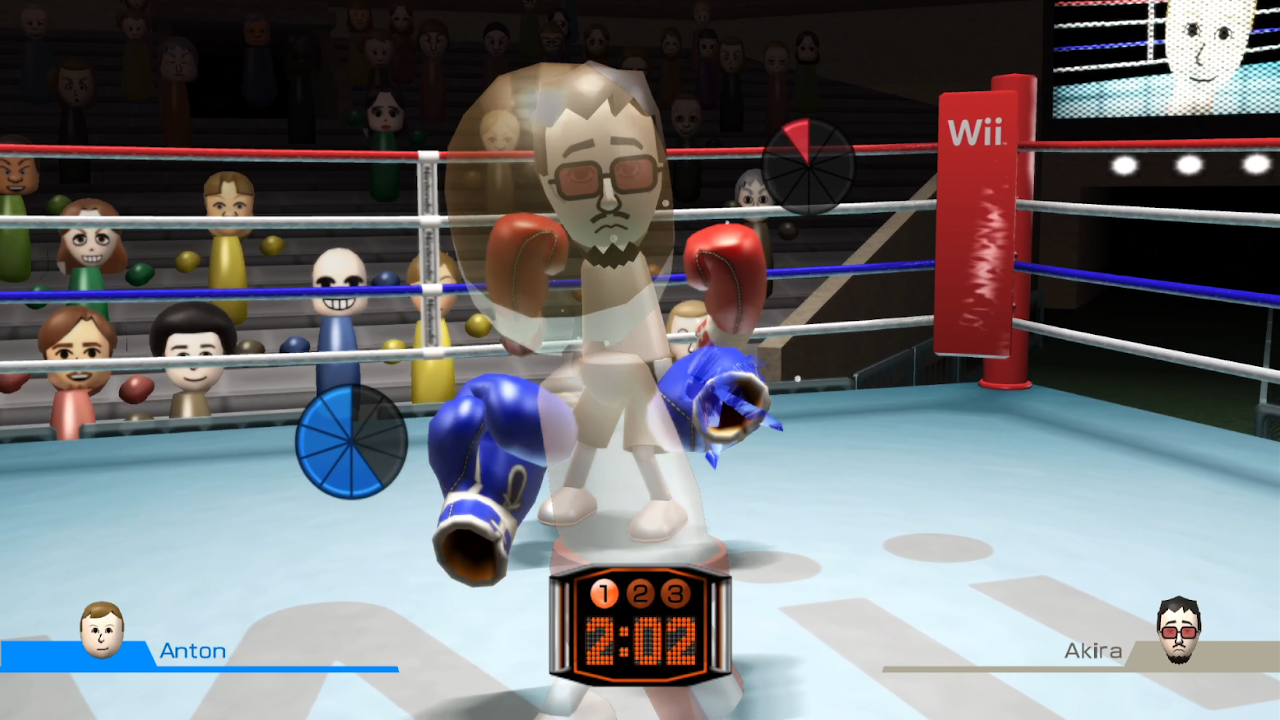
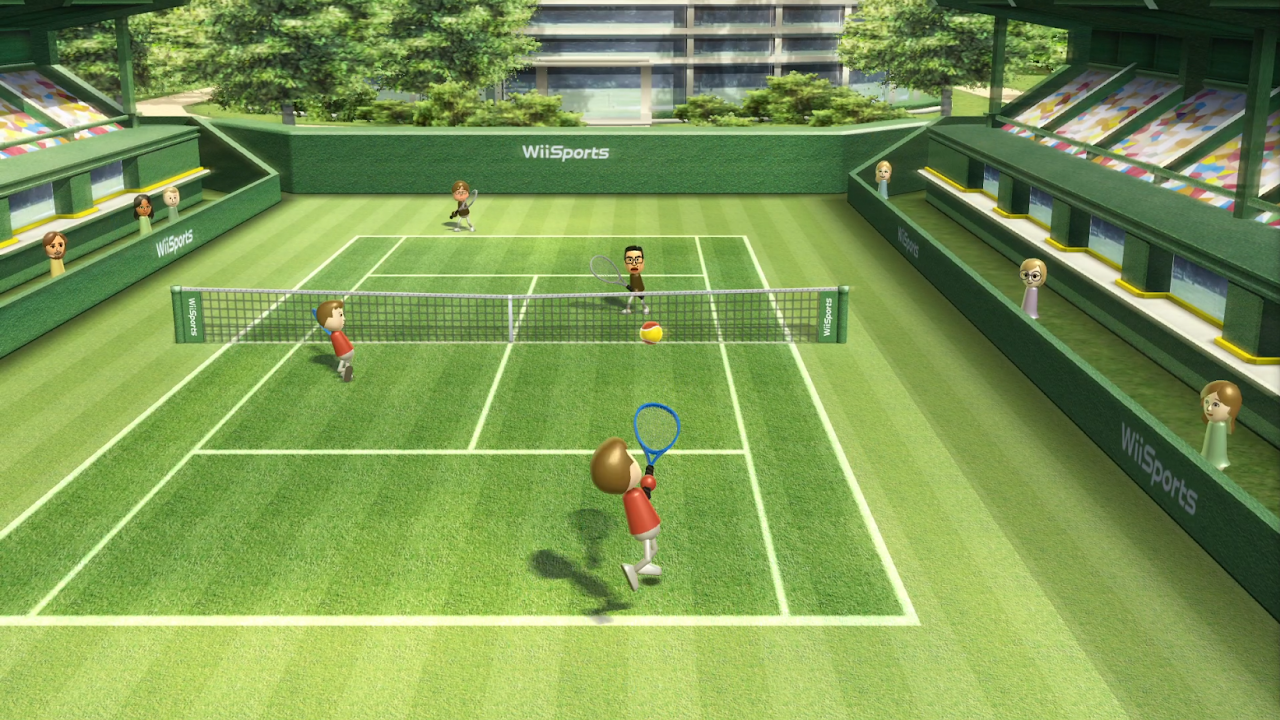
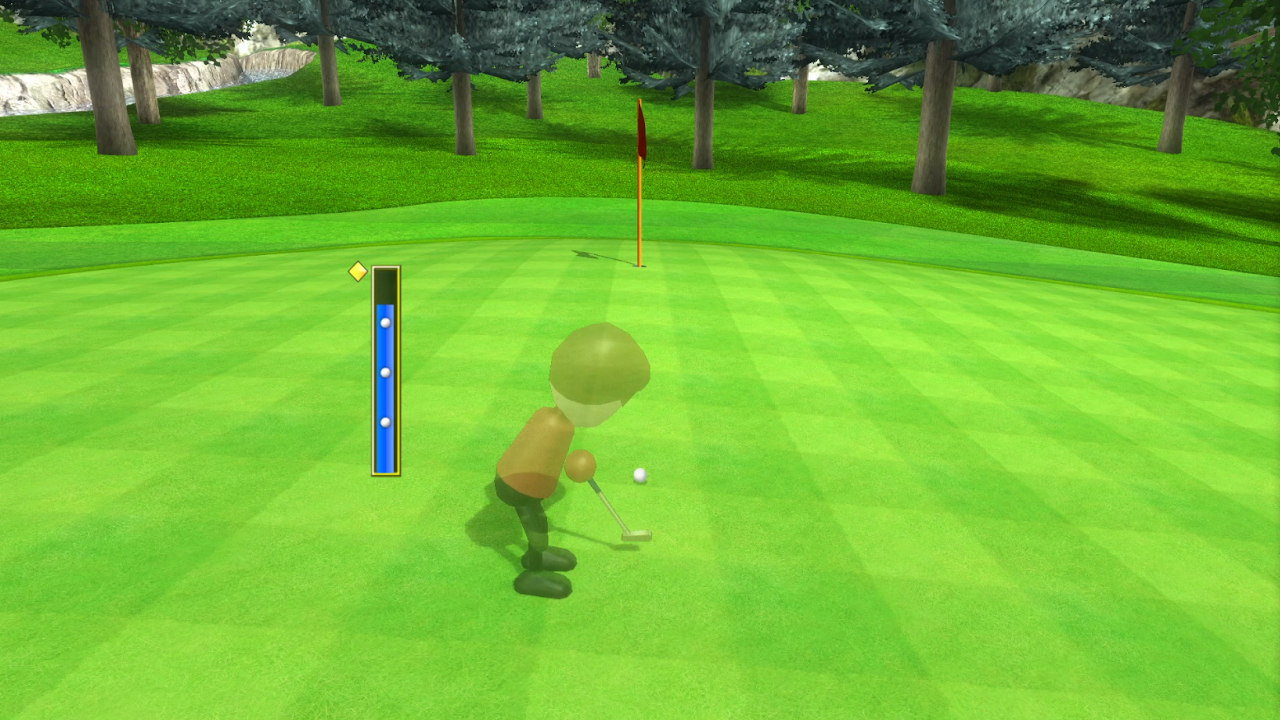
Check out the difference higher internal resolution and custom 4K textures make for Wii Sports:
Advertisement
Loading ad...
Advertisement
Loading ad...
About the Author

Anthony Micallef
Anthony Micallef is the creator of Anton Retro, a platform dedicated to retro gaming enthusiasts. With years of experience in Nintendo homebrew and modding, he creates guides to help gamers get the most out of their consoles.







Advertisement
Loading ad...
How did this guide help?
Leave a comment or tip for other players